How to Upload a Manuscript to Amazon KDP: A Step-by-Step Guide for Self-Published Authors
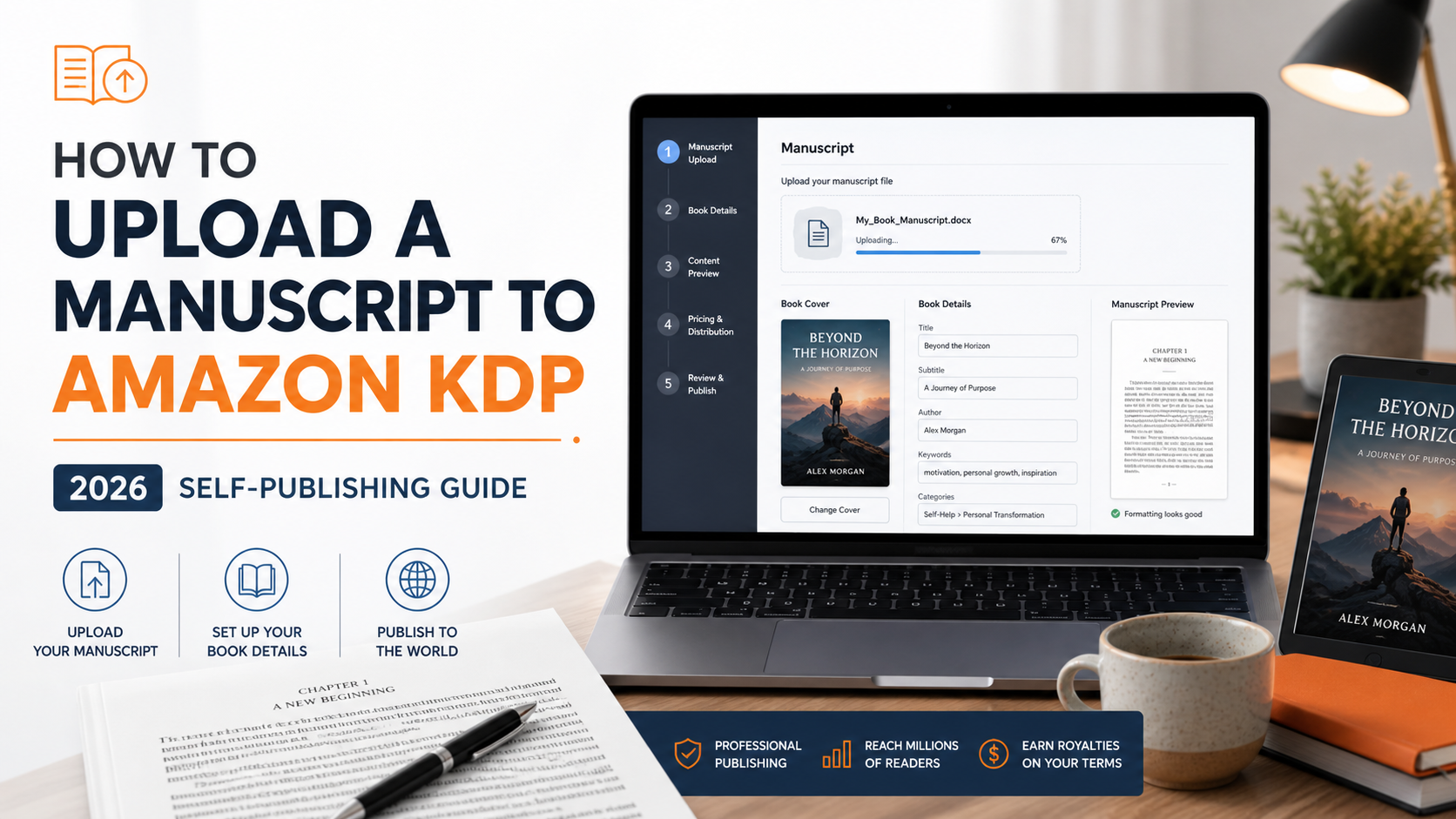
Uploading a manuscript to Amazon Kindle Direct Publishing is one of the final steps in the self-publishing process, but it should not be treated as a simple file transfer. KDP publication requires accurate metadata, a clean manuscript file, a compliant cover, appropriate keywords, relevant categories, correct rights information, pricing decisions, and a full preview review before submission.
For self-published authors, the upload process also affects discoverability. A well-prepared manuscript can still struggle if the book title, subtitle, description, keywords, categories, and series information do not clearly identify the book for the right readers. In 2026, authors need to think about KDP upload as both a technical publishing workflow and a product-page setup process.
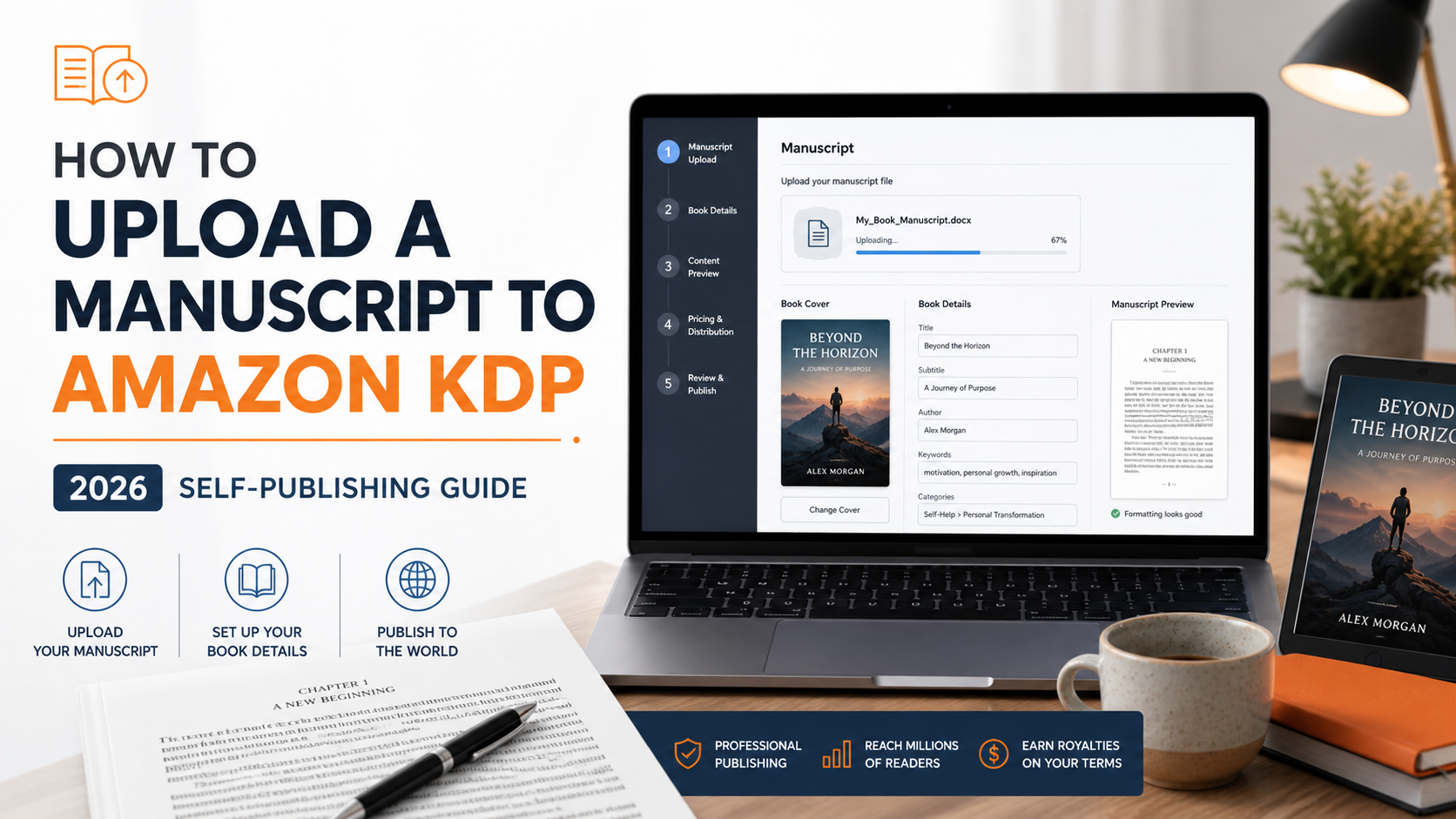
This guide explains how to upload a manuscript to Amazon KDP in a structured, professional way. It covers manuscript preparation, supported file types, book details, KDP SEO considerations, eBook and print upload steps, preview checks, pricing, final submission, and post-publication quality control.
What This Guide Covers
This guide explains how to:
Prepare your manuscript before upload.
Choose the right file format for Kindle, paperback, or hardcover.
Create or edit a title in your KDP Bookshelf.
Enter book details and metadata correctly.
Use keywords and categories responsibly.
Upload your manuscript and cover files.
Preview your book before publication.
Set rights, territories, royalties, and pricing.
Submit your book for KDP review.
Check the live Amazon product page after publication.
This guide does not replace Amazon’s official KDP documentation. Always review the current KDP Help Center before publishing, especially if you are uploading a complex file, illustrated book, children’s book, fixed-layout eBook, low-content book, public domain work, or AI-generated content.
Before You Upload: Understand the KDP Workflow
KDP organizes book setup into three main sections:
Book details: Title, subtitle, author name, description, keywords, categories, age range, language, publishing rights, and related metadata.
Book content: Manuscript file, cover file, print options, ISBN information for print books, and preview tools.
Rights and pricing: Territories, royalty plan, list price, marketplace pricing, and final publishing confirmation.
Many first-time authors focus only on the manuscript file. That creates problems later. The upload step connects directly to the book’s public-facing Amazon product page, so the manuscript, cover, title, description, categories, and keywords must all match the same reader promise.
A fantasy romance should not use mystery categories to chase easier rankings. A nonfiction guide should not stuff unrelated keywords into the subtitle. A paperback cover should not show a title that differs from the metadata. These issues can delay review, reduce reader trust, or create compliance problems.
Step 1: Prepare the Final Manuscript File
Before opening KDP, confirm that the manuscript itself is complete. Do not upload a draft that still needs major editing. KDP allows updates after publication, but early readers, reviewers, and Amazon’s quality systems may notice errors before you correct them.
At minimum, complete the following checks before upload:
Run spelling and grammar checks.
Review chapter headings for consistency.
Confirm that scene breaks display clearly.
Remove comments, tracked changes, placeholders, and editorial notes.
Check front matter, body matter, and back matter.
Confirm that all links work.
Verify that the title page matches your KDP metadata.
Confirm that the author name or pen name appears consistently.
Remove page headers and footers from reflowable eBook files unless your formatting method requires them.
Back up the final manuscript file before uploading.
For fiction, front matter commonly includes a title page, copyright page, and optional table of contents. Back matter may include an author note, acknowledgments, other books by the author, newsletter signup link, review request, or excerpt from the next book.
For nonfiction, front matter may also include a disclaimer, dedication, foreword, introduction, or table of contents. Back matter may include resources, references, endnotes, appendices, and an author biography.
The manuscript should match the book description. If your description promises a complete guide, the manuscript should deliver a complete guide. If your description promises a dark romantasy with enemies-to-lovers tension, the uploaded file should not read like a general fantasy adventure with no romance arc. KDP setup and reader expectation need to align.
Step 2: Choose the Correct Manuscript Format
KDP supports different file types depending on whether you publish a Kindle eBook, paperback, or hardcover.
Common eBook manuscript formats
For reflowable Kindle eBooks, authors commonly use:
DOC or DOCX: Common for text-heavy manuscripts created in Microsoft Word or similar word processors.
EPUB: Common for professionally formatted eBooks.
KPF: Kindle Package Format, exported from Kindle Create.
KDP no longer accepts MOBI files for new or updated eBook uploads. For modern KDP publishing, use DOCX, EPUB, or KPF for standard reflowable books.
Common paperback and hardcover manuscript formats
For print books, PDF is usually the preferred upload format because it preserves layout, page size, margins, and typography. KDP may accept other file types for certain no-bleed interiors, but print files require stricter control than eBooks.
Use PDF for print books when:
The book has images or elements that extend to the edge of the page.
The layout depends on exact page positioning.
The manuscript includes complex formatting.
You want to preserve fonts and page design.
KDP requires a separate cover file for paperback and hardcover books. A print cover includes the front cover, spine, and back cover in one complete file. This differs from an eBook cover, which uses only the front cover image.
Step 3: Prepare the Cover File
Your cover is not technically part of the manuscript upload, but it belongs to the same content setup stage. Prepare it before you begin the KDP workflow.
For a Kindle eBook, prepare a front cover image. For paperback or hardcover, prepare a full print cover file with the correct trim size, spine width, bleed, and back cover layout.
Before upload, confirm that your cover:
Uses the correct title and subtitle.
Uses the correct author name or pen name.
Matches the book’s genre and reader expectation.
Displays clearly at thumbnail size.
Does not imitate another author’s cover in a misleading way.
Does not include false claims, unauthorized trademarks, or inaccurate bestseller language.
Matches the metadata entered in KDP.
The title, subtitle, author name, and series information on the cover should match the information entered in KDP. If the metadata says one thing and the cover says another, correct the mismatch before submission.
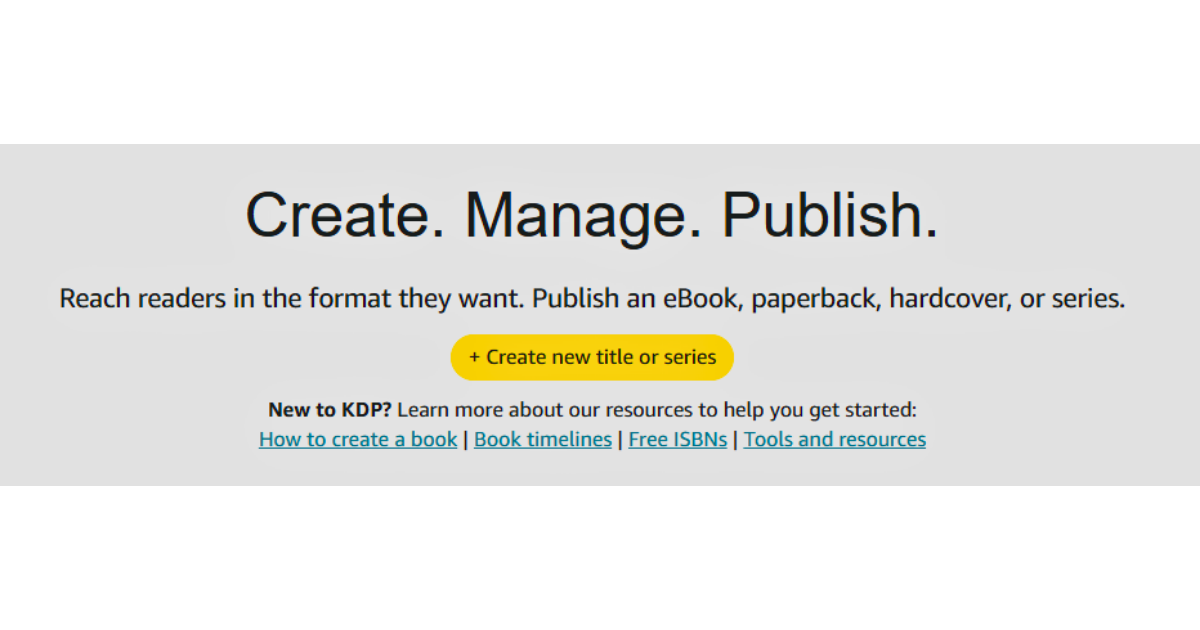
Step 4: Sign In to KDP and Start a New Title
Go to kdp.amazon.com and sign in with your Amazon KDP account. From the KDP Bookshelf, choose the format you want to create.
Common options include:
Kindle eBook.
Paperback.
Hardcover.
Series page, if applicable.
If you plan to publish the same book in multiple formats, create each format carefully. A Kindle eBook, paperback, and hardcover each have separate setup screens, files, pricing requirements, and review considerations.
KDP may limit the number of titles you can create within a specific time period. If you publish many books or editions, manage uploads carefully and avoid creating unnecessary duplicate drafts.
Step 5: Enter the Book Details
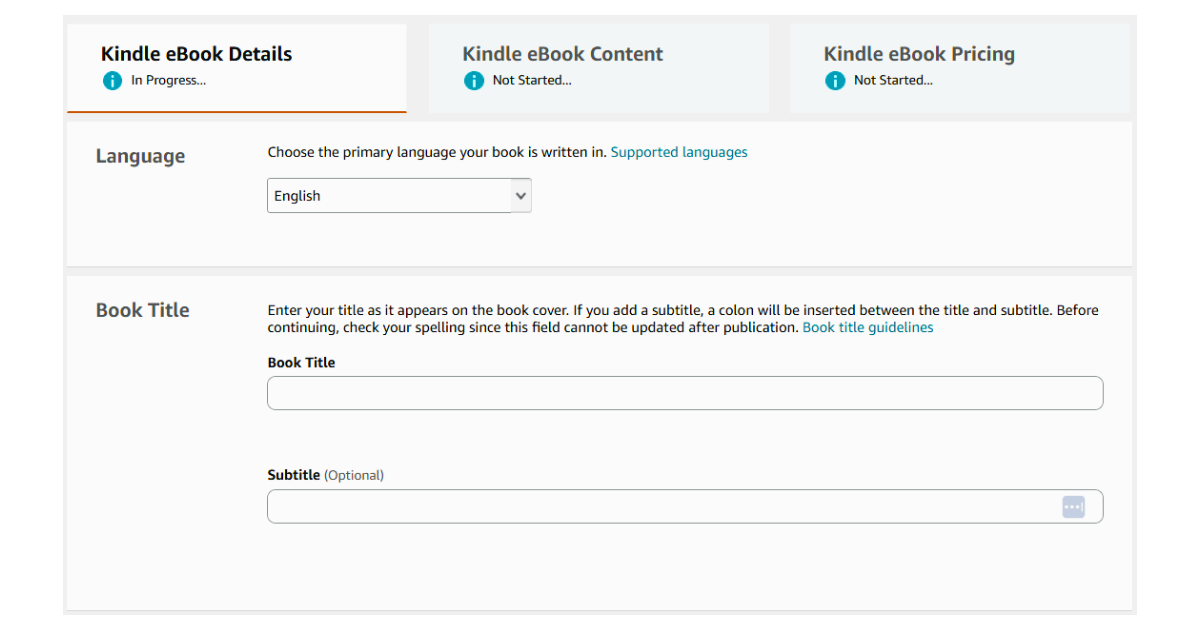
The book details section creates much of your public Amazon product page. Treat this section as metadata, sales copy, and discoverability setup.
You will usually need to enter or confirm:
Language.
Book title.
Subtitle, if applicable.
Series information, if applicable.
Edition number, if applicable.
Author name.
Contributors, if applicable.
Book description.
Publishing rights.
Keywords.
Categories.
Primary audience.
Reading age or grade range, if applicable.
AI-generated content disclosure, if applicable.
Preorder settings for eligible eBooks, if applicable.
Some fields may become difficult or impossible to change after publication. Review this page slowly before continuing.
Step 6: Write a Clear, Search-Aware Book Title and Subtitle
Your title should identify the book accurately. Your subtitle should clarify the promise, audience, genre, or outcome without keyword stuffing.
For nonfiction, a subtitle can help readers understand the result the book provides. For fiction, a subtitle may identify genre, series placement, or trope positioning, depending on your publishing strategy.
Strong nonfiction title and subtitle structure
Title: The Indie Author Launch Checklist
Subtitle: A Step-by-Step Self-Publishing Guide for Preparing, Uploading, and Marketing Your First Book
This subtitle provides useful context without turning into a list of unrelated keywords.
Strong fiction title and subtitle structure
Title: Bride of the Briar Beast
Subtitle: A Dark Fairytale Romantasy
This subtitle helps the right reader understand genre and tone without misleading them.
Avoid title and subtitle problems
Do not use the title or subtitle field for:
Unrelated keywords.
Competitor author names.
Unauthorized trademark references.
Promotional claims such as “free” or “bestselling” unless accurate and allowed.
Category manipulation.
Long keyword chains.
Information that does not appear on the book cover when required.
A title should help the reader identify the book. It should not read like a search-engine dump.
Step 7: Write the Book Description
The book description appears on the Amazon product page and plays a direct role in conversion. It should not simply summarize the entire book. It should help the right reader decide whether the book matches what they want.
For fiction, a strong description usually includes:
A hook.
The protagonist’s problem.
The central conflict.
The emotional or genre promise.
Stakes.
Tropes or reader expectations, where appropriate.
A clear call to action.
For nonfiction, a strong description usually includes:
The problem the reader wants to solve.
The outcome the book helps them achieve.
The audience the book serves.
The major topics covered.
Credibility signals.
A clear call to action.
KDP supports limited HTML formatting in the description field. Use formatting to improve readability, not to decorate the page. Paragraph breaks, bold text, italics, and simple lists can make the description easier to scan.
Book description formatting tips
Use short paragraphs. Lead with the strongest hook. Avoid dense blocks of text. Place the most important reader promise near the beginning. Check the preview or product page after publication to ensure the formatting displays correctly.
If you copy the description from a word processor, hidden characters may cause formatting errors. If the KDP editor rejects the description, paste the text into a plain-text editor first, then reapply supported formatting manually.
Step 8: Choose KDP Keywords
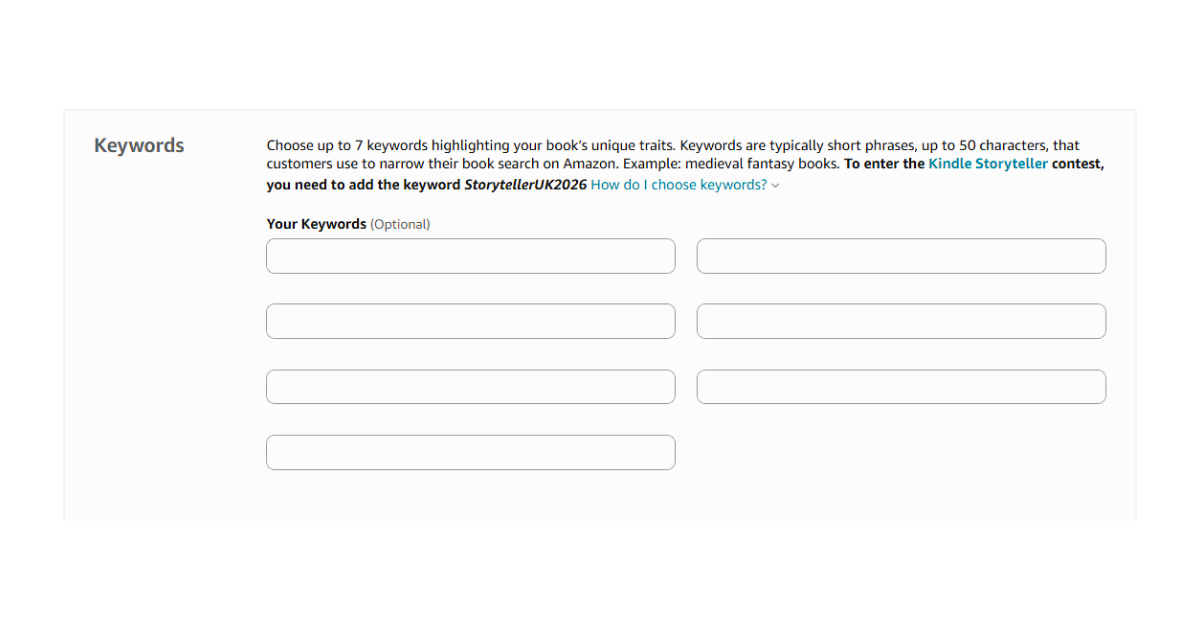
KDP allows authors to enter up to seven keyword entries or short phrases. These keywords help Amazon understand when your book may fit reader searches. Use them to describe the book’s actual content, genre, audience, topic, or reader intent.
A good keyword phrase should reflect language a reader might type into Amazon. For example, “military science fiction” is more natural than “fiction science military.”
How to research KDP keywords in 2026
Use a practical research process:
Search Amazon for books similar to yours.
Review autocomplete suggestions in the Amazon search bar.
Study the language used in comparable book titles, subtitles, and descriptions.
Read reader reviews of comparable books and note repeated phrases.
Identify genre, trope, topic, problem, or audience terms.
Remove phrases that do not accurately describe your book.
Avoid repeating words already used heavily in your title and subtitle unless the phrase needs exact clarity.
Examples of fiction keyword phrases
For a dark romantasy novel, possible keyword directions might include:
dark fairytale romance
enemies to lovers fantasy
gothic romantasy
beast romance retelling
forbidden fantasy romance
morally grey love interest
spicy fantasy romance
Only use phrases that accurately fit the book.
Examples of nonfiction keyword phrases
For a self-publishing guide, possible keyword directions might include:
self publishing guide
publish on Amazon KDP
indie author marketing
book launch checklist
Kindle publishing help
author platform building
book formatting guide
Do not use unrelated high-volume terms. KDP metadata should improve discoverability for the right readers, not trick the wrong readers into clicking.
Step 9: Select Accurate Categories
Categories help Amazon place your book in relevant browsing paths. KDP allows you to select categories during setup based on format, primary marketplace, and book details.
Choose categories that match the book’s central content. Do not choose irrelevant categories because they look less competitive. Misleading category selection can create a poor customer experience and may violate KDP guidelines.
When choosing categories, consider:
The book’s primary genre or topic.
Reader expectation.
Comparable books.
Whether the category accurately describes the book.
Whether the book can satisfy readers browsing that shelf.
If you cannot find a perfect category, use the closest accurate category and strengthen your keyword fields with more specific phrases.
Step 10: Complete Publishing Rights and AI Content Disclosure
KDP requires you to confirm publishing rights. If you own the copyright or have the necessary rights, select the appropriate rights option. If the book includes public domain content, translations, licensed material, illustrations, stock assets, or third-party contributions, verify your rights before upload.
KDP also requires authors to disclose AI-generated content when publishing a new book or republishing an edited book through KDP. This requirement applies to AI-generated text, images, or translations. Amazon does not require disclosure for AI-assisted content, such as tools used for grammar checking, spelling correction, brainstorming, or editing support when the final creative work remains human-authored.
If your manuscript, cover, interior artwork, or translation includes AI-generated material, review KDP’s current AI content guidance before submitting.
Step 11: Upload the Kindle eBook Manuscript
After completing the book details section, continue to the Kindle eBook Content page.
Follow this process:
Confirm whether you want to enable digital rights management, if the option appears.
Upload the manuscript file.
Wait for KDP to process the file.
Upload the eBook cover file or use Cover Creator.
Open the Online Previewer.
Review the entire book.
Correct errors in the source file if needed.
Reupload the corrected file.
Repeat the preview process until the book displays correctly.
Do not submit the book immediately after the upload succeeds. A successful upload only means KDP accepted the file for processing. It does not mean the book has no formatting issues.
Step 12: Upload the Paperback or Hardcover Manuscript
For paperback or hardcover setup, continue to the print content section. Print books require additional decisions before preview.
You may need to select:
ISBN option.
Publication date.
Print options.
Interior type.
Paper type.
Trim size.
Bleed settings.
Paperback or hardcover cover finish.
Manuscript file.
Cover file.
For print books, use the Print Previewer to check the interior and cover. Pay close attention to margins, trim, bleed, spine alignment, page numbers, blank pages, image resolution, and whether text falls outside safe areas.
Print errors cost more than eBook errors because readers receive a physical product. If possible, order a proof copy before announcing the print edition.
Step 13: Preview the Book Carefully
Previewing is not optional. It is the main quality-control stage before publication.
For eBooks, review the file across common device views, including phones, tablets, and Kindle e-readers. For print books, inspect every page in the Print Previewer and consider ordering a proof copy.
eBook preview checklist
Check the following items:
Title page displays correctly.
Table of contents works.
Chapter headings look consistent.
Scene breaks appear clearly.
Paragraph indentation and spacing are consistent.
Italics and special characters display correctly.
Images appear in the correct locations.
Links work.
Back matter displays correctly.
No placeholder text remains.
No accidental blank sections appear.
The opening pages create a professional reader experience.
Print preview checklist
Check the following items:
Trim size is correct.
Margins are safe.
Page numbers appear in the correct locations.
Headers and footers are consistent.
Blank pages are intentional.
Images meet resolution standards.
Text does not run into the gutter.
The cover fits the template.
Spine text aligns correctly.
Back cover text is legible.
Barcode placement does not interfere with design.
The final page count matches expectations.
If the preview identifies errors, correct the original file, export a new version, and upload again. Do not rely on temporary fixes unless KDP specifically provides a safe correction tool for that issue.
Step 14: Set Rights, Territories, Royalties, and Pricing
After the content section, continue to rights and pricing.
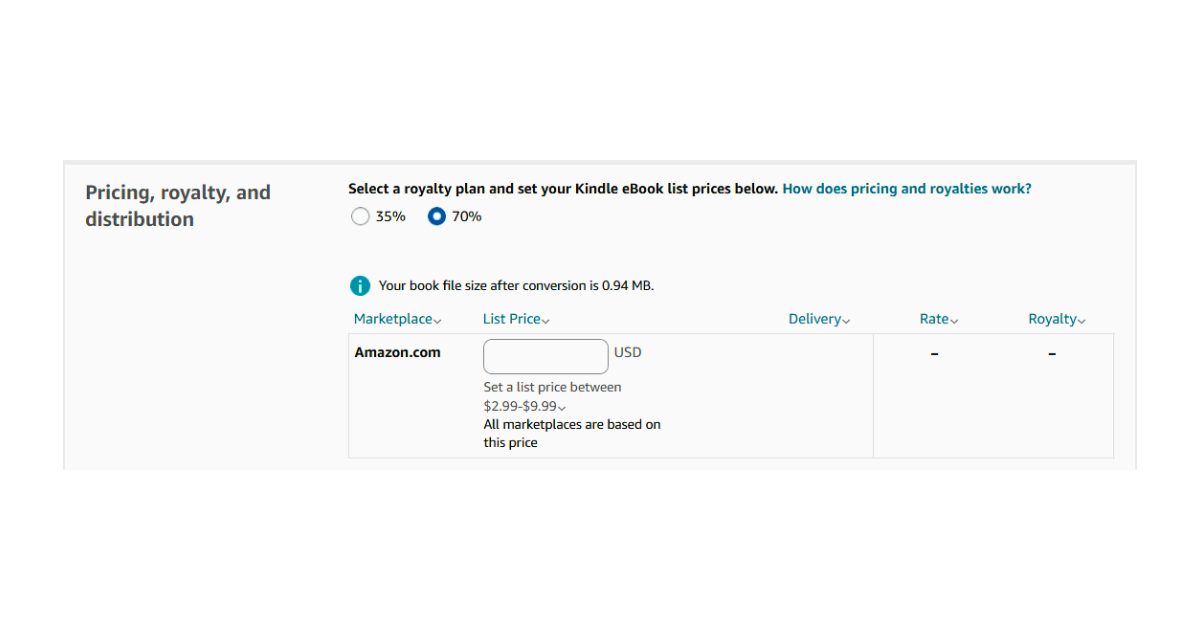
For eBooks, KDP generally presents royalty options and marketplace pricing fields. You may choose a primary marketplace, set a list price, and allow KDP to convert pricing for other marketplaces or enter prices manually where available.
For print books, pricing depends on printing cost, marketplace, trim size, page count, ink type, paper type, and distribution selections. KDP displays estimated royalties before publication.
Before choosing a price, compare books in your category. A first-time author does not need to price at the bottom of the market, but the price should make sense for the format, genre, length, cover quality, reader expectation, and author platform.
Pricing checks before publication
Confirm that:
The price fits the book’s format and market.
The royalty estimate is acceptable.
International marketplace pricing looks reasonable.
Print pricing covers production cost.
The launch price supports your marketing plan.
Any KDP Select decision aligns with your distribution strategy.
KDP Select can make a Kindle eBook available through Kindle Unlimited, but it requires digital exclusivity during the enrollment period. Review the current KDP Select terms before enrolling.
Step 15: Submit the Book for Publication
After completing all sections, submit the book for publication. KDP will review the files and metadata before the book becomes available for sale.
During review, do not create unnecessary duplicate titles. If KDP flags an issue, read the notice carefully, correct the source problem, and resubmit.
Common reasons for review problems include:
Metadata mismatch.
Cover title mismatch.
Poor image quality.
Formatting errors.
Missing rights information.
Incorrect public domain setup.
Misleading categories or keywords.
Unsupported file elements.
Content quality issues.
AI-generated content disclosure issues.
Publication timing can vary. Do not schedule a launch announcement until you have confirmed that the live product page appears correctly.
Step 16: Review the Live Amazon Product Page
After publication, open the Amazon product page and inspect it as a reader would.
Check the following items:
Title and subtitle.
Author name.
Cover image.
Book description formatting.
Series information.
Categories.
Price.
Available formats.
Look Inside preview, if available.
Author Central link.
Editorial reviews or A+ Content, if applicable.
Back matter links in the purchased file, if possible.
If you plan to run Amazon Ads, complete the product page first. Ads can send readers to the page, but they cannot fix a weak cover, unclear description, poor category fit, or confusing reader promise.
KDP SEO Checklist for 2026
KDP SEO means making the book easier for the right readers to find and easier for those readers to evaluate. It is not the same as Google SEO. On Amazon, discoverability and conversion work together.
Before publishing, review the following KDP SEO checklist:
The title is accurate and readable.
The subtitle clarifies genre, topic, audience, trope, or outcome.
The book description opens with a clear hook.
The description uses readable formatting.
The seven keyword fields use relevant reader search phrases.
Keywords are specific rather than generic.
Categories accurately match the book.
The cover visually fits the category.
The author name is consistent across books.
Series information is entered correctly.
Back matter directs readers to the next logical action.
The sample pages support the promise made by the cover and description.
A book’s metadata should never promise a different book from the one readers receive. The best KDP SEO strategy is alignment: the right keywords, the right category, the right cover, the right description, and the right manuscript for the same intended reader.
Common Upload Mistakes to Avoid
Uploading the wrong version
Use clear file names. Include the title, format, and date. Before upload, delete outdated export files from your working folder or move them into an archive folder.
Example file name:
BookTitle_Kindle_Final_2026-05-06.docx
Forgetting to remove comments or tracked changes
Never upload a manuscript that contains editorial comments, tracked changes, placeholder notes, or hidden revision marks. Export a clean final copy.
Using a print file for an eBook without checking conversion
Print files and eBook files function differently. A print PDF may not create a strong reflowable Kindle eBook. For text-heavy books, use a clean DOCX, EPUB, or KPF file designed for Kindle reading.
Choosing misleading categories
Do not place a book in an unrelated category because it looks easier to rank. Category accuracy protects reader trust and reduces compliance risk.
Treating keywords like tags
KDP keywords should reflect reader search phrases. Use natural phrases rather than disconnected single words whenever possible.
Ignoring the previewer
The previewer exists because upload errors are common. Review the book before clicking publish.
Publishing before the product page is ready
A rushed product page can damage a launch. Fix the description, cover, metadata, and preview before sending readers to the book.
Final Pre-Publication Checklist
Before clicking publish, confirm that:
The manuscript file is final.
The manuscript has been proofread.
The title page matches KDP metadata.
The cover matches the title, subtitle, author name, and series information.
The book description is formatted correctly.
The keywords accurately describe the book.
The categories match the book’s content.
The AI-generated content disclosure is accurate.
The eBook preview has been checked.
The print preview has been checked, if applicable.
Pricing has been reviewed in all relevant marketplaces.
Rights and territories are correct.
Back matter links work.
The author website and newsletter links are current.
You have saved backup copies of all final files.






Conclusion
Uploading a manuscript to Amazon KDP is a technical process, but it is also a publishing decision. The manuscript file, cover, metadata, keywords, categories, description, pricing, and preview all work together to create the reader’s first experience with the book.
A professional upload process reduces errors, improves reader trust, and gives the book a stronger chance of reaching the right audience. Prepare the manuscript carefully, enter metadata accurately, choose categories honestly, use keywords strategically, preview every format, and inspect the live product page after publication.
Self-publishing rewards authors who treat the process like a business system. KDP makes publication accessible, but the author still controls the quality of the file, the clarity of the sales page, and the professionalism of the reader experience.

A reader magnet can help authors turn casual visitors into email subscribers. This guide explains how to prepare a reader magnet, upload it to BookFunnel, create a signup page, connect an email platform, test delivery, and use the offer as part of a professional author platform.